Lesson 7 of 7 · about 12 minutes
Before Publishing: Metadata, Rights Line, Size and Format
You'll be able to
- Explain what camera metadata can reveal and remove it before publishing
- Place a small attribution and rights line on an image without ruining it
- Choose JPG, PNG or WebP for a given image
- Resize and compress an image so it loads fast on a phone
Your image is chosen, licensed, captioned and alt-texted. Three more jobs before it goes out: clean out the hidden data, put your rights line on it, and export it at a size that does not punish people on a phone.
Strip the metadata
A photo file carries more than the picture. Phones and cameras write metadata into it, usually in a format called EXIF: the date and time, the phone or camera model, lens settings, and often the GPS coordinates of where you stood when you pressed the shutter.
For a picture of a guardrail, that is harmless. For a photo you took from your kitchen window, or a photo a source sent you from their backyard, it can put a home address on the internet. The Electronic Frontier Foundation has written about a case where coordinates embedded in a posted photo helped the FBI place it at a specific house. Camera metadata can also include a serial number that ties several photos to the same device.
Some big social platforms strip location data when you upload. Do not rely on it. Your own website, newsletter attachments, cloud-share links and emailed files may keep every byte. Clean the file once, before it leaves your hands.
How to do it
AVPrep has an Images tab that strips metadata from image files in your browser. Run your finished images through it as the last step before upload, and keep the original files (with metadata) in your private archive. The originals are your proof of when and where you shot something, should anyone ask.
You can also stop location from being recorded in the first place, or leave it out when sharing:
- iPhone: Apple's Personal Safety guide shows how to share without location: in the Share Sheet, tap Options and turn off Location. To stop the camera recording it at all, set Settings, Privacy and Security, Location Services, Camera to Never. You can also remove a location from a single photo with Adjust Location, No Location.
- Android: camera apps vary by maker. On Google Pixel phones, the Pixel Camera help pages describe a setting to turn saving location on or off. Look in your camera app's settings for a location or geotag option.
Settings menus move between software versions (these were checked as of October 2026). Whatever your phone does, stripping in AVPrep before upload is your backstop.
Screenshots carry less metadata than camera photos, but they can include the device and time. Run them through too. It costs a few seconds.
Add a rights and attribution line
Images travel without their articles. Someone screenshots your chart, posts it, and it gets shared 3,000 times with no link back to you. A small line on the image itself keeps your name and your terms attached.
The rules for placing it:
- Small. Readable if you look for it, invisible if you don't. On a 1600-pixel-wide image, text around 14 to 18 pixels tall usually works.
- About 50 percent opacity. Semi-transparent white or black, whichever reads against that corner. The picture should show through.
- In a lower corner. Bottom right is the usual spot. Keep it off faces, documents' key numbers and anything the image exists to show.
- Clear of cropping zones. Leave a margin from the edge so platforms that trim a few pixels do not cut it.
Write the line for the kind of work. For your own published civic work, where you want sharing to happen, something like:
© 2026 Your Name / Sharing and reposting permitted if the image remains unaltered and attribution is retained. Commercial use requires written permission.For work you do not want spread at all (unreleased material, something for one recipient), use a stricter line:
© 2026 Your Name. All rights reserved. No reproduction, distribution, or public posting without written permission.Use the current year. Old templates love to carry last year's date. Add your site's address if there is room. On AI illustrations, add "AI illustration" to the same corner, as lesson 4 explains.
A rights line on an image you licensed from someone else should credit them. Do not stamp your copyright on a CC BY photo you did not take. Put their TASL credit in the caption and leave their image clean, or add a small credit line with their name.
Example: placement
A 1920x1080 chart of road spending. The rights line sits 24 pixels in from the right edge and 20 pixels up from the bottom, in white text at 50 percent opacity over the dark background, about 16 pixels tall, one line. The source line for the data sits bottom left at full opacity, because readers need that one.
Pick the format
JPG, PNG and WebP cover almost everything. MDN's image format guide and Google's web.dev guide agree on the basics:
| Format | Compression | Transparency | Use for |
|---|---|---|---|
| JPG (JPEG) | Lossy | No | Photos. Scenes, people, anything with smooth tones. |
| PNG | Lossless | Yes | Screenshots, charts, document crops with fine text, logos, anything needing a transparent background. |
| WebP | Lossy or lossless | Yes | Either job, usually at a smaller file size. Supported by current major browsers. |
MDN reports lossy WebP files average 25 to 35 percent smaller than comparable JPEGs, and lossless WebP about 26 percent smaller than PNG. If your site and your newsletter platform accept WebP, use it. Some email programs and older platforms still choke on it, so keep a JPG or PNG copy for those.
The one mistake to never make: saving a chart or a document screenshot as a low-quality JPG. Lossy compression smears sharp text edges into a fuzzy halo. Charts and text go PNG or lossless WebP.
Size it for the screen
A modern phone photo can be 4000 pixels wide and 3 to 8 MB. A typical article column displays around 700 to 900 pixels wide. Uploading the original makes every reader download several times more image than they can see, and on a rural cell signal the page may never finish loading.
A workable target for article images:
- Width: about twice the display width, so around 1600 pixels for a standard article image. That covers high-density phone screens. Full-width headers can go to about 2000 to 2400.
- File size: a few hundred kilobytes for most photos. Under 500 KB is a good habit; under 200 KB is better when it still looks clean.
- Quality: for JPG and lossy WebP, test a few quality settings and pick the lowest that still looks right at normal viewing size. Somewhere in the 70s to mid 80s on a 100-point scale often works, but trust your eyes over the number.
Social platforms resize and recompress whatever you upload, with their own size rules that change often. Export at the shape the platform wants (the square, vertical and wide sizes from lesson 4) and let them do the rest.
Try it
- Take a photo with your phone outdoors, with location on.
- Check its info on your phone and note whether a location shows.
- Open AVPrep, use the Images tab to strip its metadata, and save the cleaned copy.
- Resize the cleaned copy to 1600 pixels wide in any image editor. Export it as JPG and as WebP at a few quality settings. Write down the file sizes and pick the smallest one that looks right.
- Add a rights line in a lower corner at about 50 percent opacity. Look at it at phone size. Can you read it if you look for it? Does it stay out of the way if you do not?
Checklist
- Metadata stripped from every published image, including ones from sources.
- Originals with metadata kept privately as proof.
- Rights line small, lower corner, about 50 percent opacity, current year.
- Licensed images carry the creator's credit, not your copyright.
- Photos in JPG or lossy WebP; charts, screenshots and documents in PNG or lossless WebP.
- Article images about 1600 pixels wide and a few hundred KB.
- Viewed at phone width before publishing.
Pictures, Numbers and Infographics
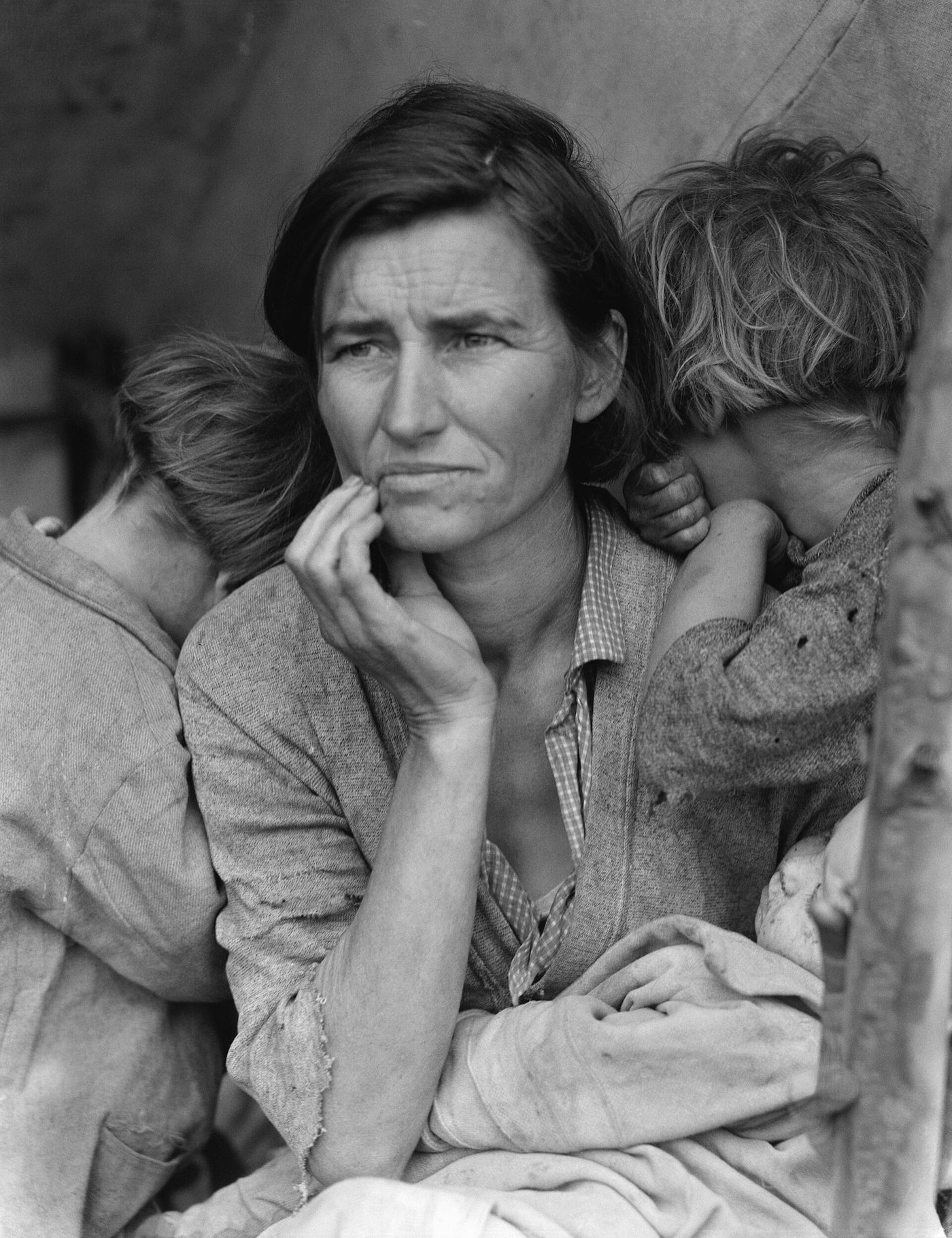
Nearly every adult now carries a camera, and a free public domain picture is a search away, yet more than half of popular home pages still post images with no alt text. The photograph and numbers below cover the three jobs in this module: make the picture, clear the rights, and describe it.
By the numbers
- 91%: share of U.S. adults who own a smartphone, up from 35% in Pew's first survey of smartphone ownership in 2011. Pew Research Center, 2025
- 53.1%: share of the top one million home pages with images missing alternative text in 2026, down from 68% in 2019. It is the second most common accessibility failure, after low contrast text. WebAIM Million, 2026
- 149,568,126: freely usable media files on Wikimedia Commons, as of October 14, 2026. Each file still carries its own license, so check it before you publish. Wikimedia Commons
- Nearly 40%: share of the 976 claims filed with the Copyright Claims Board by the end of fiscal year 2024 that involved pictorial, graphic and sculptural works, including photographs. U.S. Copyright Office Annual Report, 2024
- $30,000: the most a copyright owner can win in damages at the Copyright Claims Board, the Copyright Office's small-claims tribunal. U.S. Copyright Office, 2024
- 78,532: visual arts registrations, which include photographs, issued by the Copyright Office in fiscal year 2024. U.S. Copyright Office, 2024
- 1930: the year of publication for works that entered the U.S. public domain on January 1, 2026. Center for the Study of the Public Domain, Duke Law, 2026
Current: In the News
News coverage
- "Canon Introduces C2PA-Compliant Authenticity Imaging System for News Organizations", Canon Inc., May 11, 2026. Cameras that sign provenance data at capture, a reminder that stripping metadata can also remove authenticity records you may want to keep.
- "Tripped up by misinformation? Here's a refresher on identifying AI", PBS News Hour (Associated Press), April 2, 2026. A practical checklist (reverse image search, source tracing, careful use of detectors) to run on any image before it goes out.
External resources
- "Content Credentials", Content Authenticity Initiative. A free tool for checking whether an image carries Content Credentials and what edit history they record.
Check yourself
1. What can a phone photo's embedded metadata reveal if it is not removed?
Phone photos commonly carry location, timestamp and device details in their metadata unless location is turned off or the data is stripped.
2. Some social platforms strip metadata on upload. Why strip it yourself anyway?
You cannot count on every place your image lands to strip it. Clean the file once, before it leaves your hands.
3. Where should a rights and attribution line go on a published image?
Small and semi-transparent in a corner keeps the line attached to the image without wrecking it.
4. Which format fits a screenshot of a spreadsheet with sharp text?
Lossless formats keep text edges crisp. JPG compression smears sharp edges into fuzzy artifacts.
5. A phone photo is 4032 pixels wide and 6 MB. The article column is about 800 pixels wide. What is a reasonable export?
About twice the display width covers high-density screens. Anything bigger is weight the reader downloads for nothing.
Terms in this lesson
- Metadata (EXIF)
- Hidden data stored inside an image file, such as camera model, date, time and GPS location. EXIF is the common standard for photos.
- Geotag
- GPS coordinates saved in a photo's metadata.
- Opacity
- How see-through something is. 100 percent is solid; 50 percent lets the image show through.
- Lossy compression
- Shrinking a file by throwing away detail the eye is less likely to notice, as JPG and lossy WebP do.
- Lossless compression
- Shrinking a file without discarding any image data, as PNG and lossless WebP do.
Sources
- Apple Personal Safety User Guide: Manage location metadata in Photos checked 2026-10
- Google Pixel Camera Help: camera location settings checked 2026-10
- EFF, A Picture is Worth a Thousand Words, Including Your Location checked 2026-10
- MDN, Image file type and format guide checked 2026-10
- web.dev, Choose the right image format checked 2026-10